A more in depth look into camera, blueprints and sequencer.
Carrying on from my previous camera project, I wanted to have a more in-depth look at camera transitions. I looked at Nier Automata as inspiration and tried to mimic their style using Blueprints in UE4. This involved implementing multiple camera angles and ‘movement modes’.
Project Goals:
Transition between multiple cameras
Setup cameras with varying functionality. For example, a third person camera that looks over the shoulders of the character, as well as a side-on camera which you would see in a 2D platformer game.
When changing to different cameras, change the movement controls appropriate to that camera. (Side scroller camera you should only be able to move left and right)
Demonstrate this working on a level similar to what you would see in Nier with around a minute of gameplay.
Below is a video of the project if you would just like to see the final outcome of it. Below the video there are explanations of my Blueprints and how I setup certain mechanics.
Outcomes and Things to improve:
Camera Transitions are quite ‘extreme’ and can be jarring. (In Nier Automata they are smoother)
Generally, the transitions between movement modes worked reasonably well. (I realised certain transitions don’t work well and it requires some planning on the level design side to make it ‘feel’ better and seamless. In the video I have a sidescroller to a top-down transition which felt really bad)
Making a blueprint to be placed in editor to help the transitioning of movement and camera modes worked really well, however it could be more efficient. (See below for a more in depth explanation)
Explanation of some of the blueprints and functionality
There were various different camera and movement modes, see below for a list of the different ones I implemented.
Camera Modes:
Top Down camera in a Fixed Z position above the character.
Side-Scroller camera in a fixed position at the side of the character
Third Person Over the shoulder (Controllable by Mouse)
Camera that follows a spline based on location of the character
Movement Modes:
Default Third person. (Able to move camera with the mouse, usual wasd movement keys)
Top Down
Side Scroller
Side Scroller spline (Can’t move the camera manually, Can only use left or right movement keys and jump)
When implementing the functionality in the level I found I needed an efficient way of transitioning between different cameras and movement mode. As a way to be more efficient I set up a blueprint with the focus of making it pain-free to choose what you need to transition to.
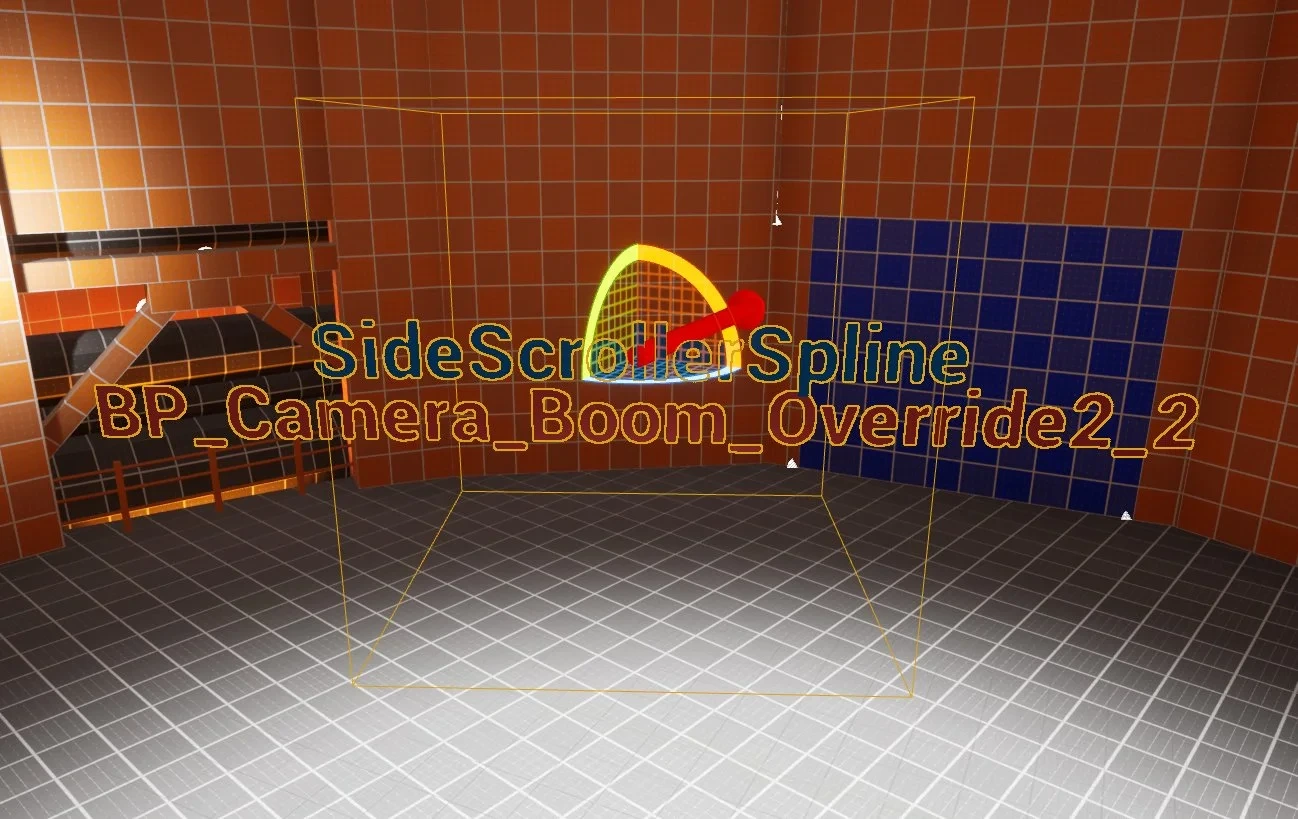
This is the ‘transition’ BP which would be placed in the world for when you needed to change either movement, or camera modes.
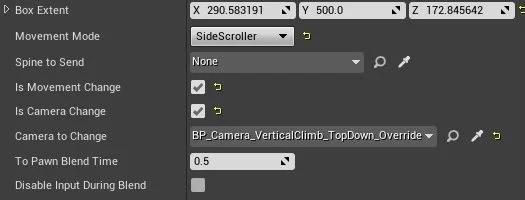
These are the variables exposed that a user can control in this BP.
With this blueprint you have to manually set the collision box size and placement in world, however, the rest is controlled by tickboxes and dropdowns using Enums. To add to this, I added some debug text which you can only see whilst in the editor. Essentially this debug text shows the camera and movement it will transition to. The blue text which says ‘SideScrollerSpline’ is the movement, and the red text ‘BP_Camera_Boom_Override’ is the camera in the world it will transition to. This was so I could easily see how each transition is set up and if it’s linking to the correct camera/movement.
Currently, you have to place a camera in the world which is its own BP inherited from a master BP camera. A further implementation I could add to make it more efficient would be to make it all in one blueprint (E.g have a enum with a list of camera options to spawn) and add a more visual way of linking the camera to the collision box for debug and ease of use purposes.
Below are screenshots of the blueprint for this transition BP.
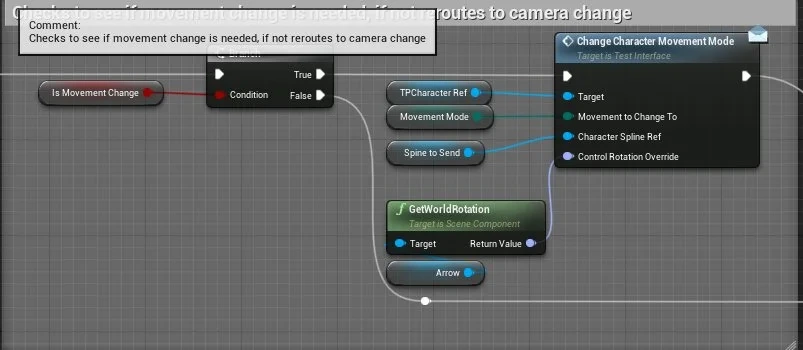
This part is checking to see if a movement change is needed, and if so it will change the movement in the character BP with a enum var linked that the user can select. This is sent via a BP Interface. The variable ‘Is Movement Change’ is exposed so when placing this BP in the world, the user can tick it on or off. If there isn’t a movement change it ignores this part. In some cases, there is a spline that the character needs a reference to, so we can send that via this too.
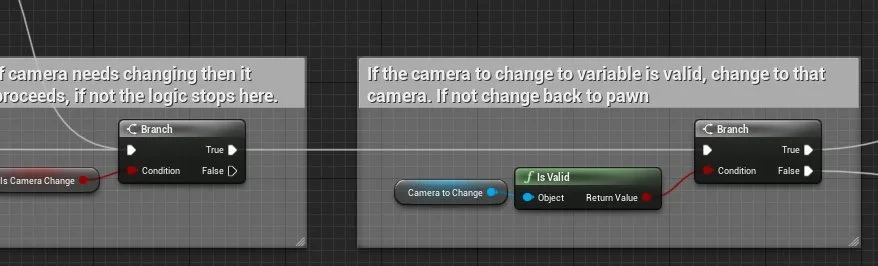
The next part is checking if a camera change is needed, If true then it checks to see if ‘Camera to Change’ has a reference which can be selected when the BP is placed in the world. If it’s true it changes to that camera, if not we can change back to the pawn camera.
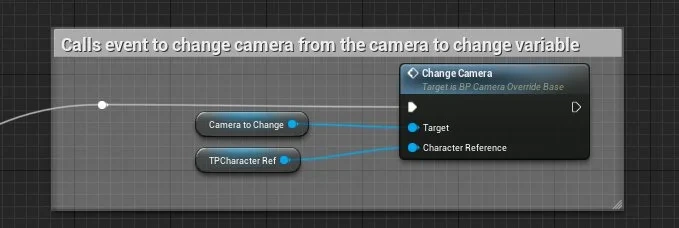
For this part it simply calls the Change Camera event in the BP Camera Override base (which I showed in the previous project), sending the camera to change to and a ref to the character.
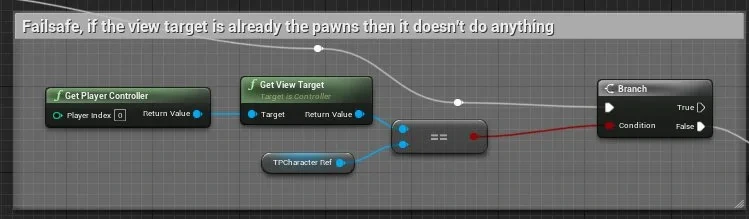
This isn’t really needed and was more of a failsafe. if the view target is already the pawns then it doesn’t do anything.
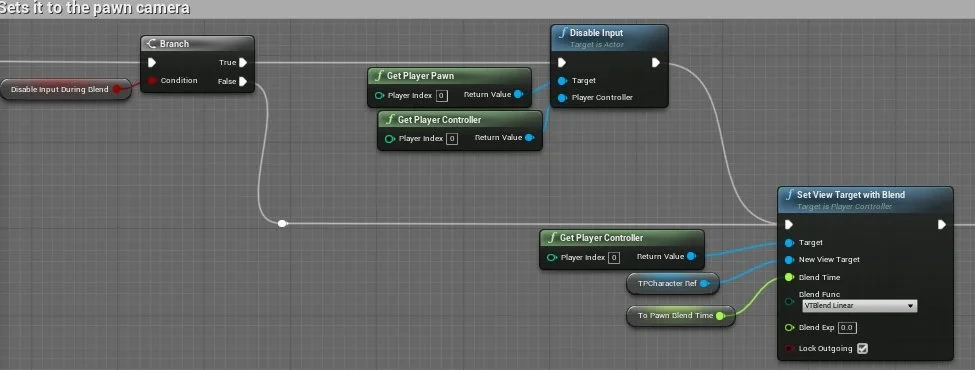
This is setting the camera back to the pawn. There’s a few variables here that the user can control, such as disable the input during the blend and blend time.
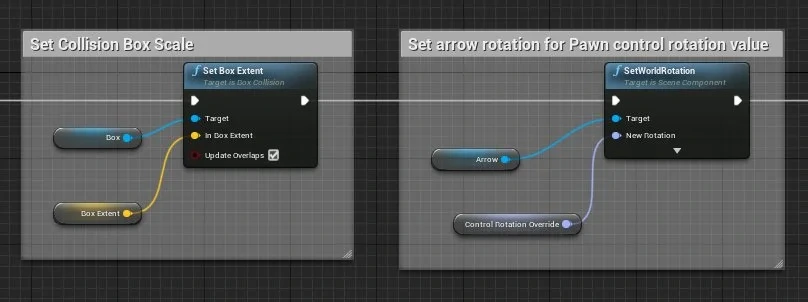
This is located in the construction script, essentially the user controls the scale of the trigger volume. There is also an added functionality I use to set the control rotation of the character. This is used when transitioning movement, such as to a sidescroller movement, we make sure the arrow is faced towards where the camera would face. We can then use the rotation of the arrow and send it to the pawn.
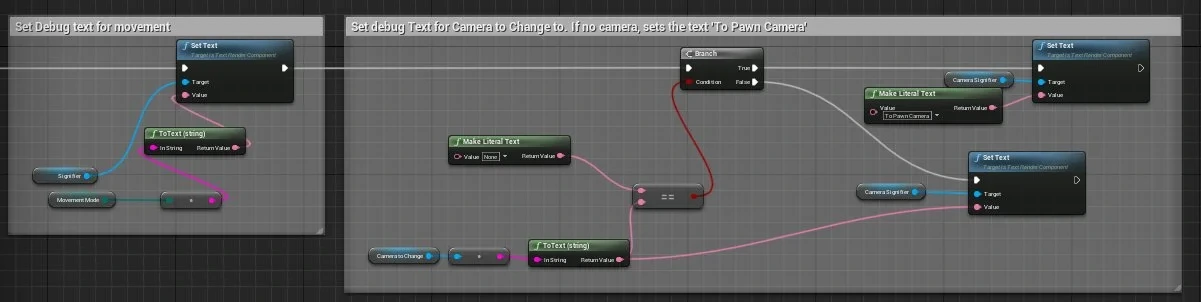
This is also located in the construction script. This is just setting up the debug text thats visual in the world. We are getting the enum value for the movement and converting it to a string to set the text of a text render component. For the movement we are first checking to see if there is a camera variable setup, if not it outputs ‘ToPawnCamera’. If there is it simply outputs to that camera’s name.
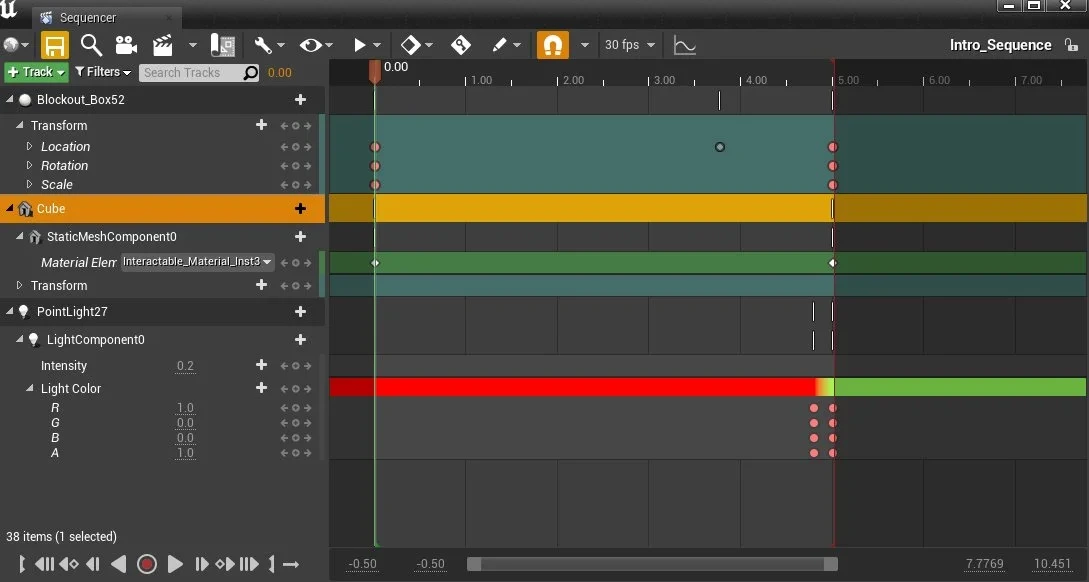
I also used sequencer for the beginning transitions, as well as objects I placed in the world. For example, in the beginning, the character is on a lift. I use sequencer to move the meshes, and then I also change a material on a mesh, and a light colour from red to green to indicate that the doors are now able to be opened. You can see this in the below image.
Another part of Nier Automata that I tried to mimic (and admittedly spend way to long on, and turned out there was a simple way to get a similar effect) was the character moving around a circular platform, whilst the camera is in a ‘2D Side scroller mode’. In this mode the player is only holding the left or right keys, and the character is automatically following the curve of the circular platform whilst the camera is staying relative to the character. See below for a gif of what I am trying to explain.
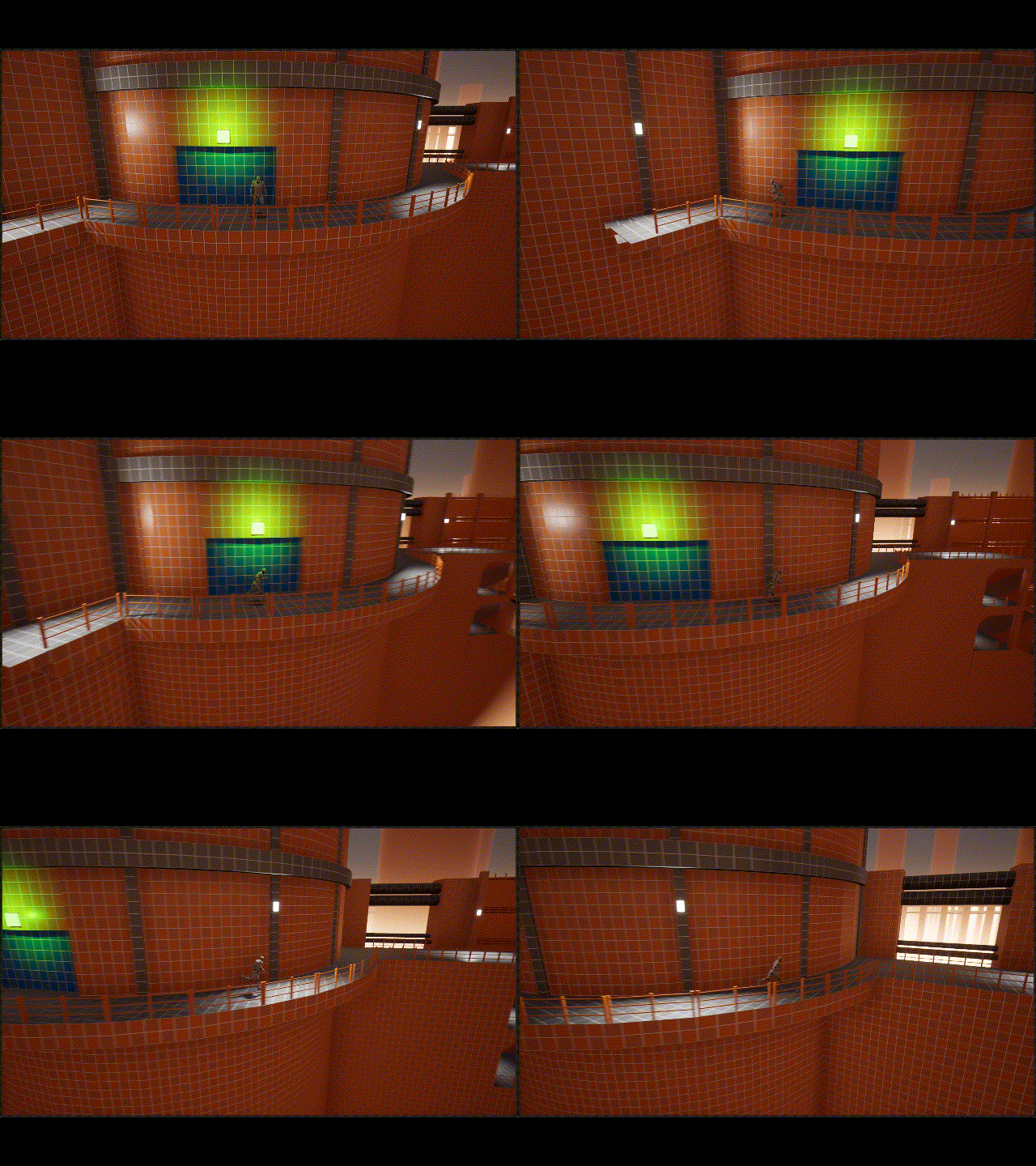
Here the player is only using left or right movement keys to control the character. The character is automatically rotating towards the curve of the circular platform.
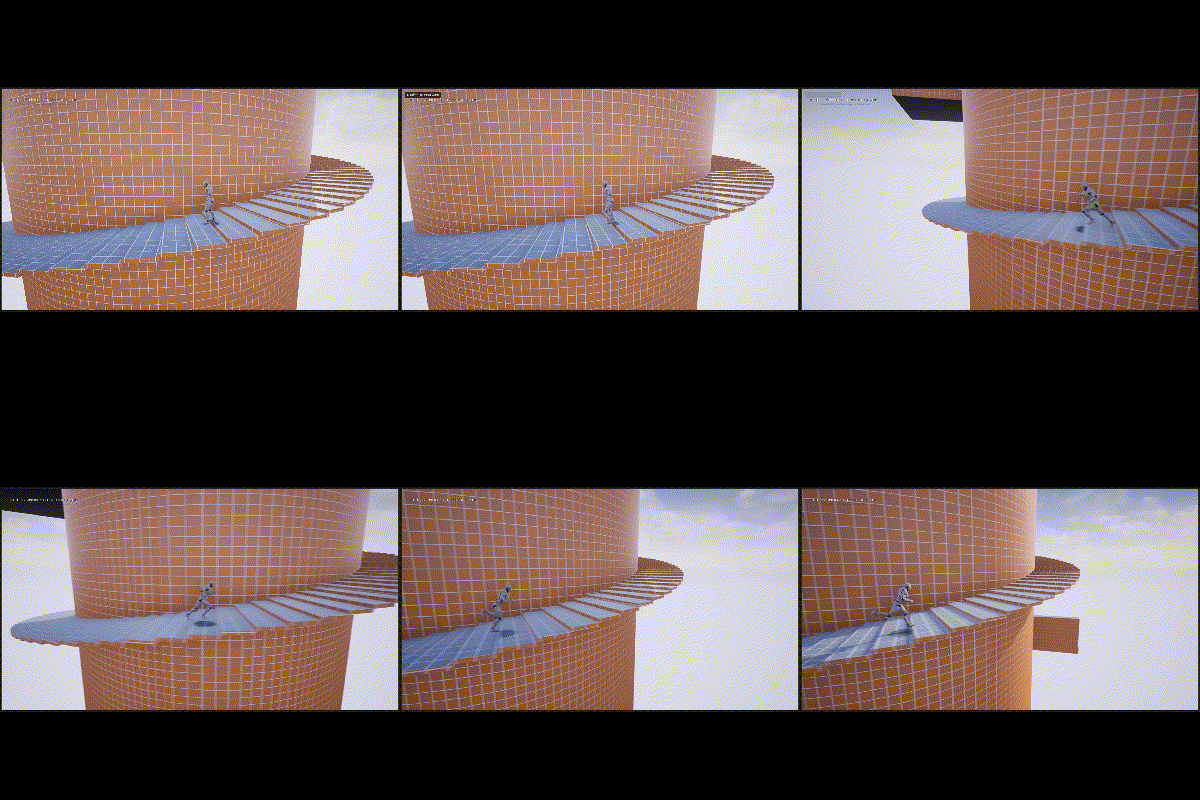
Here I was trying to implement a offset. So for example, when the player holds down the left key for a long time, the camera moves and rotates to show more of the direction that they are travelling in.
To achieve this I used a spline which is manually drawn around the circular platform. We then take the players location on this spline and find a direction. From this we get a XVector which we break and use only the Yaw, which then gets sent to the character pawns BP. This is called on Tick, so as they move left or right, the direction in which they will need to move will change so it will follow the curve of the spline. One issue with this is that it can depend on the character’s movement speed. If the character is really fast or has a dash ability (like it does in nier automata) it can struggle to stay on the spline route and may go off centre. One workaround for this method is implementing invisible collision walls so they can’t venture off the spline route.